
Insights
Reports
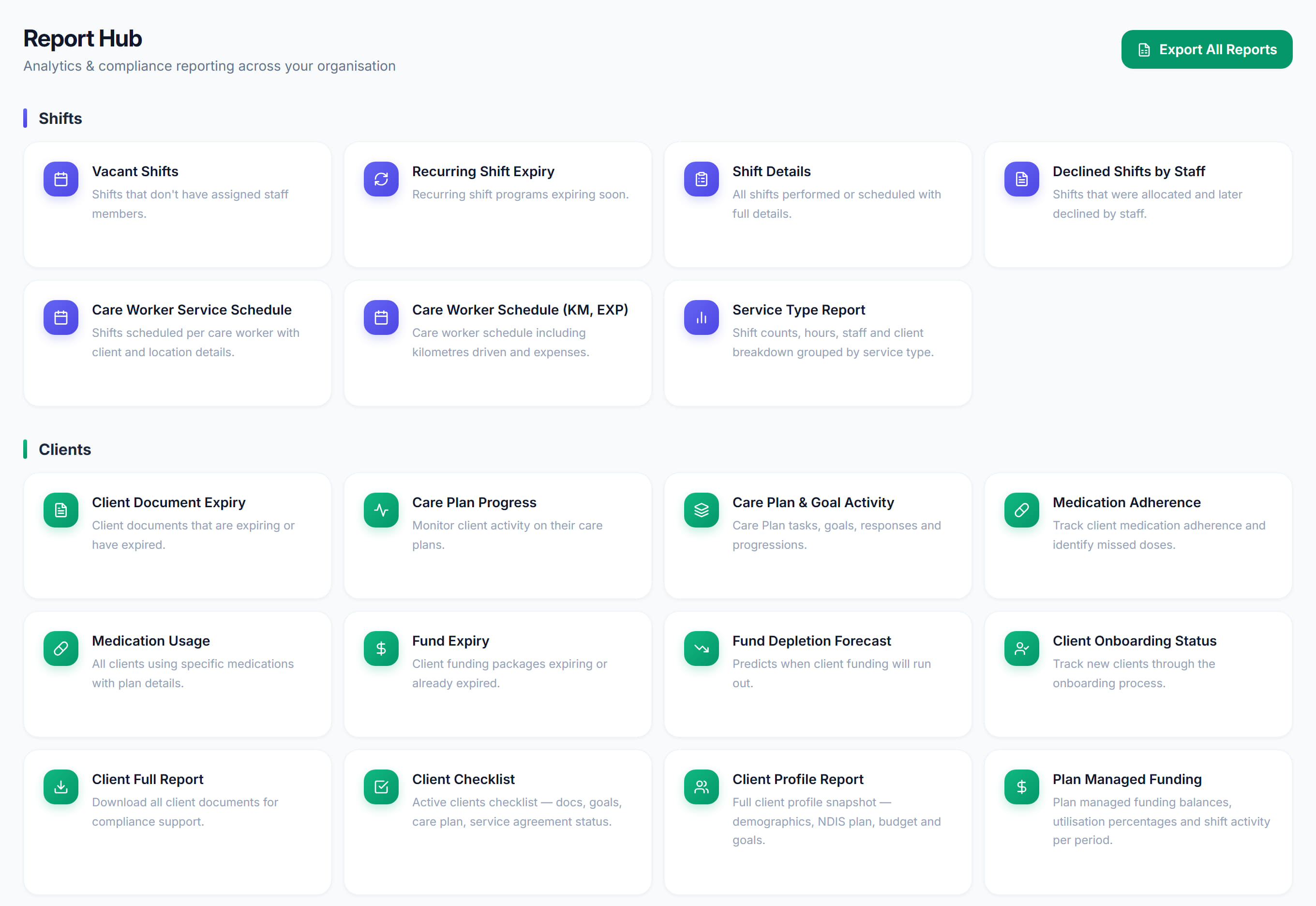
/reports7 stepsThe report viewer every report opens in, with filters and dates, charts, a paged table, an AI summary and export. Admins and office users use it to answer a specific question, such as vacant shifts or expiring documents, and to take the result out of Rostery.
Step by step
- 1
Open a report from the Report Hub, then select Filters & Dates. Set the start and end dates and any other filters the report offers, then select Apply.
- 2
Export when you need the data outside Rostery. Use Export All Reports on the Report Hub for one workbook, or Export inside a report for Excel, PDF or CSV.

- 3
Check the chips beside Filters & Dates. Each chip shows a filter in use, and its X removes that filter.
- 4
Read the charts above the table, where the report has them, for a quick picture of the rows returned.
- 5
Page through the table with the arrows at the bottom, and choose 10 to 250 rows per page. The record count shows the total that matched.
- 6
Select AI Summary for a short written insight on the data shown. Close it with its X when you are done.
- 7
Select Back to Report Hub at the top of the report when you are done, and choose another report from the cards.
The screen
Did this answer your question?
If not, talk to us — we answer from Australia, in business hours.