
Insights
Report Hub
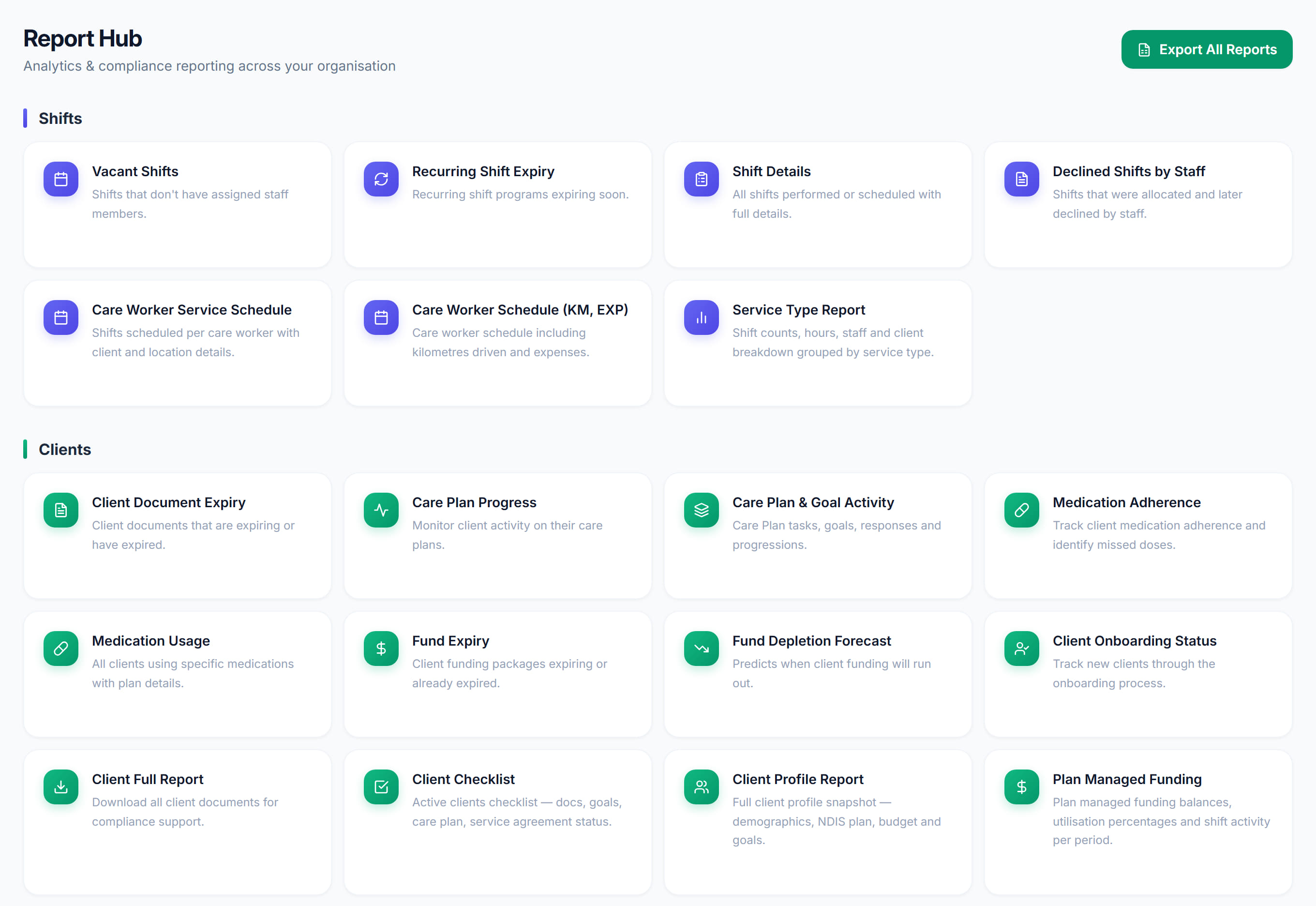
/reports/hub7 stepsThe front page for reporting, listing every operational report in Rostery grouped into Shifts, Clients, Staff and Finance. Admins and office users open it to find the right report quickly, or to export a workbook of the core reports in one go.
Step by step
- 1
Open Reports from the sidebar to reach the Report Hub. Reports are grouped into four sections: Shifts, Clients, Staff and Finance.
- 2
Scan the cards in the section you need. Each card has a title and one line describing what the report shows.
- 3
Select Export All Reports to download one Excel workbook, with an Overview sheet and a separate sheet for each of 15 core reports.

- 4
Select a report card to open it, such as Shift Details, Fund Balances or Timesheet Report. Mileage Tracker opens the mileage screen.
- 5
In the report, select Filters & Dates to set the date range and any other filters, then select Apply.
- 6
Select Export in the report to download just that report as Excel, PDF or CSV.
- 7
Select Back to Report Hub at the top of any report to return and choose another.
The screen
Did this answer your question?
If not, talk to us — we answer from Australia, in business hours.