
Insights
Activity Log
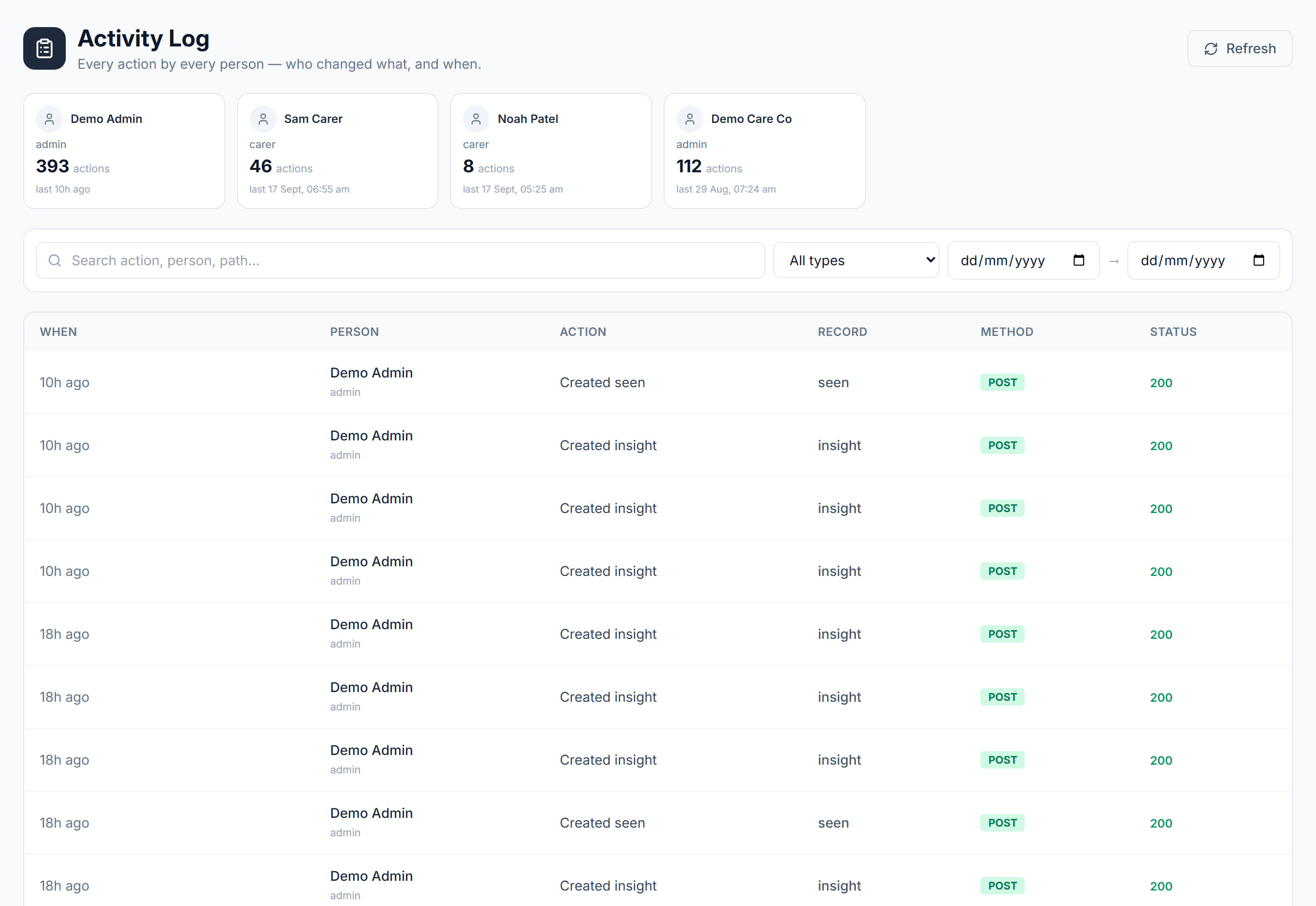
/activity9 stepsThe audit trail of changes people make in Rostery, from shifts to settings, showing who did what and when. Admins and office users use it to answer who changed a record, spot failed attempts and export evidence for an audit or complaint.
Step by step
- 1
Open Activity Log from the sidebar. Entries are listed newest first by day, and repeated actions by the same person are folded into one row.
- 2
Search by action, person or path, and choose a record type, such as Shift, Client, Invoice or Settings, to narrow the list.
- 3
Set the from and to dates to cover the period in question. Select Clear filters to start again.
- 4
Select a person's card above the table to see only their actions. Each card shows how many actions they took and when they were last active.
- 5
Read the columns: When, Person, Action, Record and Result. A Failed badge marks something a person tried to do that did not succeed.
- 6
Select the arrow at the end of a row to show its details: the request, HTTP status, record id, email, exact time and the fields sent.
- 7
Select the record name to open that client, staff member or module, where Rostery can link to it.
- 8
Turn on Show system events to include AI insight refreshes and read markers the app records by itself.
- 9
Select Export CSV to download the entries that match your filters, up to the newest 20,000.
The screen
Did this answer your question?
If not, talk to us — we answer from Australia, in business hours.