
Care & Quality
Tasks
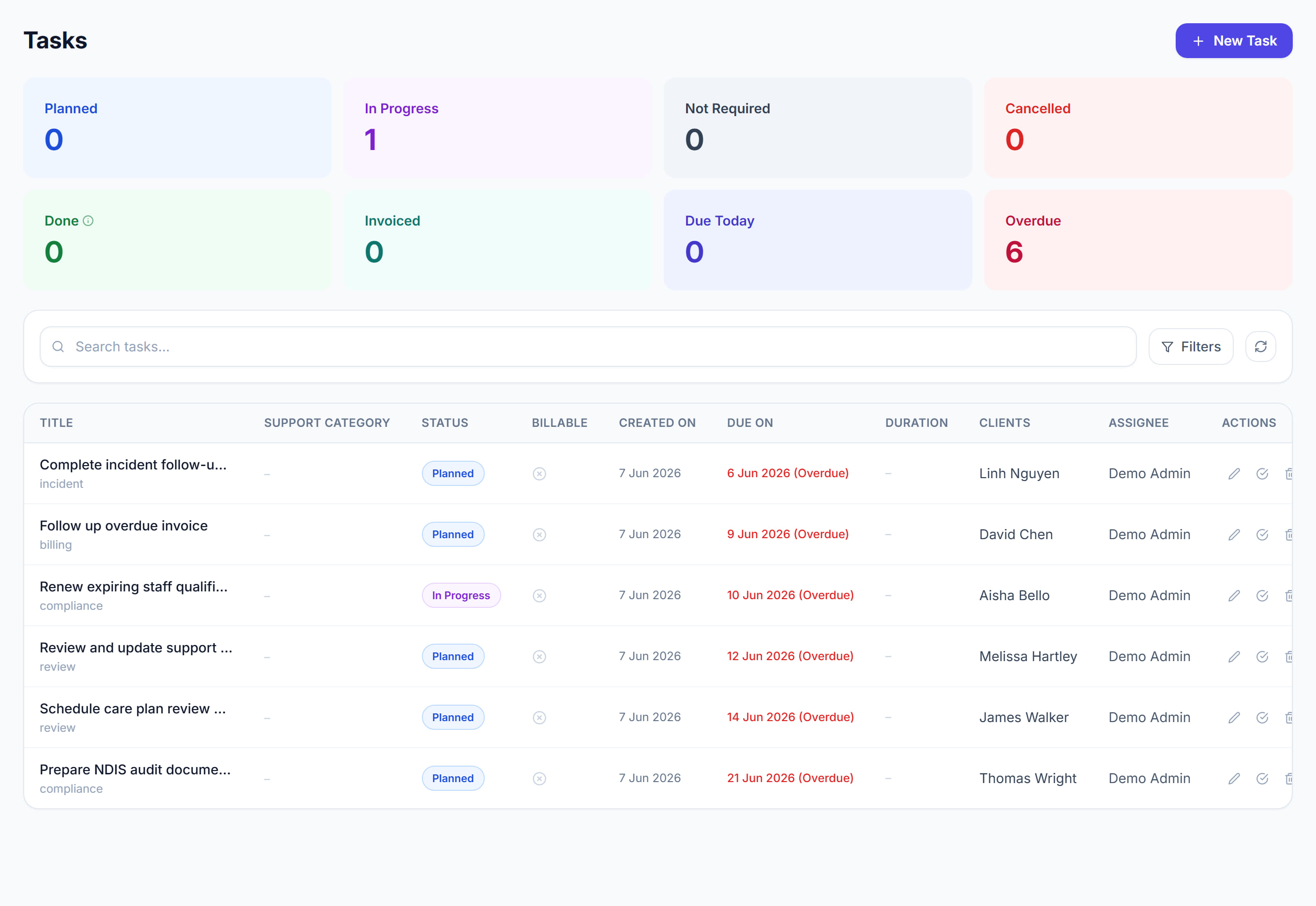
/tasks8 stepsTasks tracks work that is not a shift, such as follow-ups, reviews and paperwork. Office staff and administrators create tasks, link them to a client and a staff member with a due date, and work through them in the order they fall due.
Step by step
- 1
Click New task, enter a Task name, and choose the Client and Staff member it relates to. The Due date starts as today.
- 2
Track overdue items with the Overdue filter. Overdue tasks also sit first in the list, under their own red heading.
- 3
Set the Task type, Status and Duration. Turn on Billable and choose a Support category and Fund when the task is billable work for the client.
- 4
Add Instructions for whoever does the task, and use Upload file to attach a document, image or video about it.
- 5
Tick the box at the start of a row to mark a task done, or choose Mark done from the row's menu.
- 6
Use the filters All, Planned, In progress, Due today, Overdue and Done. The menu beside them adds Cancelled, Not required and Invoiced.
- 7
Click Columns to show Support category, Duration or Billable in the list. Your choice is remembered in this browser.
- 8
Click a task's name to see its details, or choose Edit task or Delete task from the row's menu.
The screen
Did this answer your question?
If not, talk to us — we answer from Australia, in business hours.