
Care & Quality
Medications
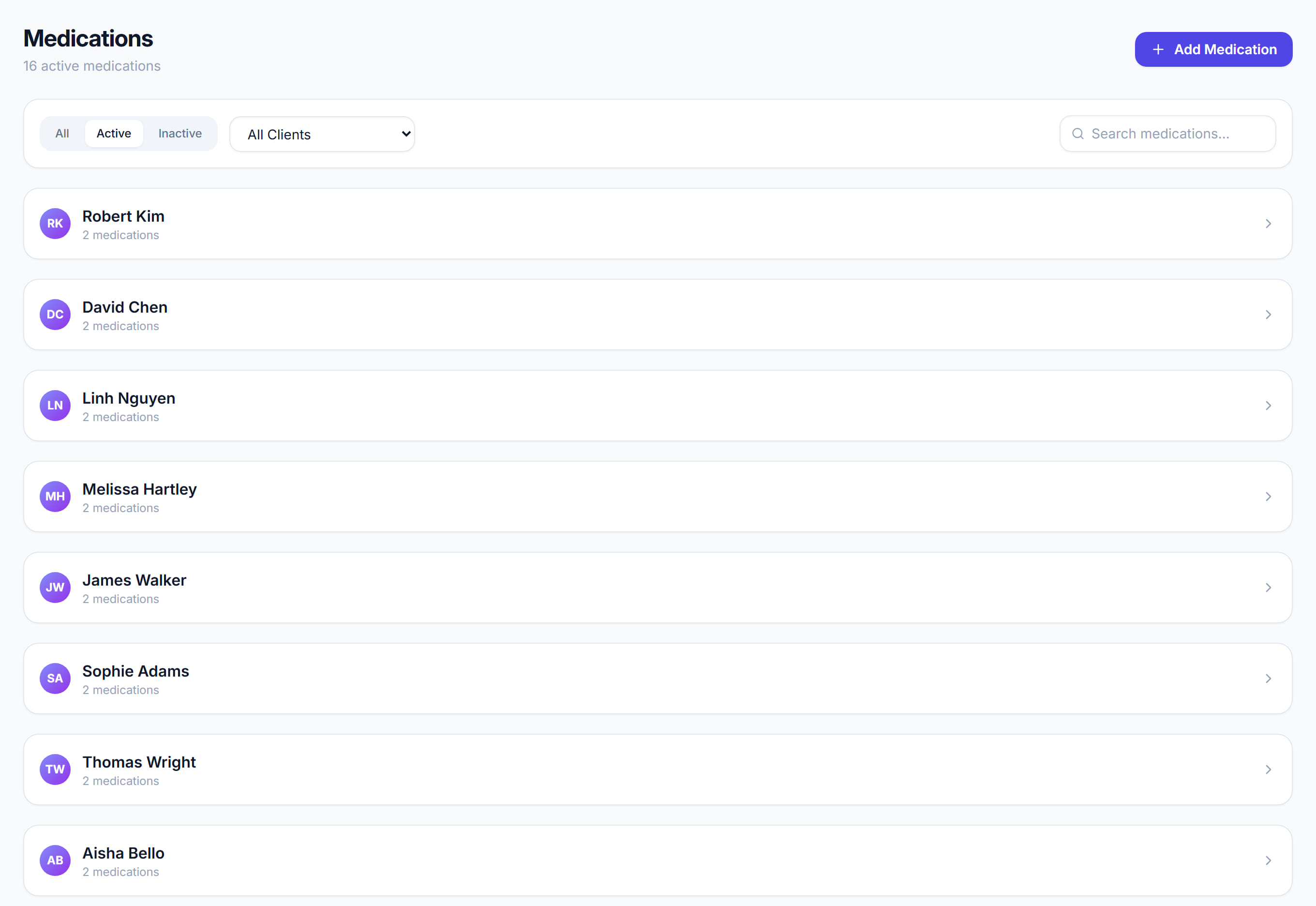
/medications8 stepsMedications is the medication administration record for every client: what each person is prescribed, and every dose given, refused or held. Staff record each dose here, and the counters show refusals and missed doses across the last seven days.
Step by step
- 1
Click Add medication, choose the Client, and enter the Medication name, Dosage, Route, Form and Frequency. Add the Prescriber, Pharmacy and dates if you have them.
- 2
Click Record on the medication's line when a dose is due. Choose the Outcome, check Dose given, and type your full name as the carer signature.
- 3
Check the counters above the list: Refused or missed (7 days), Held or not available (7 days) and PRN doses given (7 days). Each refusal needs follow-up.
- 4
Read the Last recorded column to see the latest outcome for each medication without opening it. Lines are grouped under each client.
- 5
For an S8 controlled drug, set Drug schedule to S8 and enter the Controlled drug balance. Each recorded S8 dose is taken off that balance.
- 6
When recording an S8 dose, choose the Witness and have them type their full name. Record stays greyed out until both signatures are in.
- 7
Turn on PRN (as needed) for a medication given only when required, and fill in PRN reason or trigger so staff know when to give it.
- 8
Use the All, Active and Inactive tabs, the client list and the search box to narrow the list. Turn off Active when a medication stops.
The screen
Did this answer your question?
If not, talk to us — we answer from Australia, in business hours.