
Communications
Messages
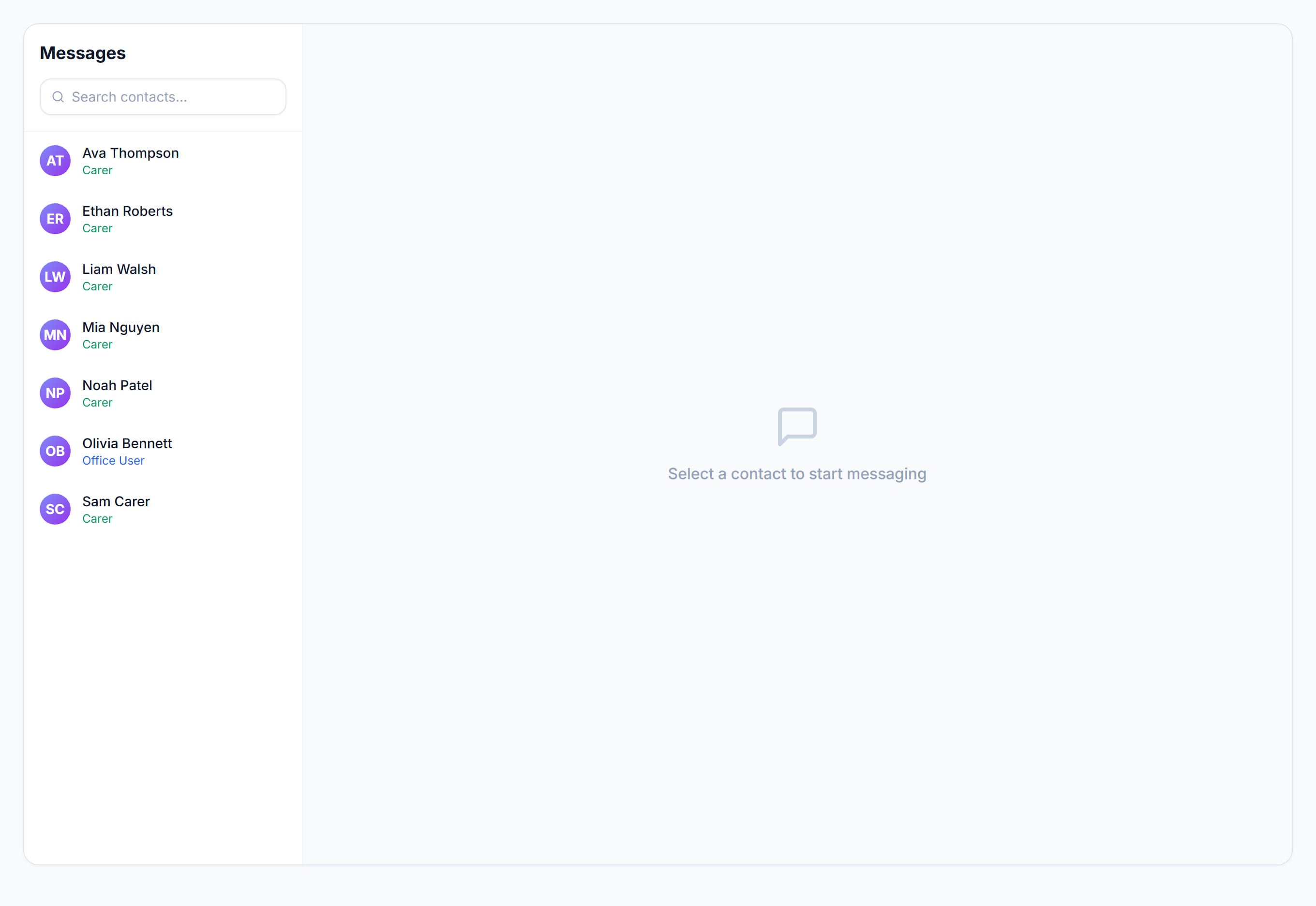
/messages7 stepsOne-to-one messaging between the office and staff inside Rostery. Office staff use it to send quick messages to workers, who get a notification on their phone and reply from the Messages screen in the mobile app.
Step by step
- 1
Open Messages from the Communications section to message an individual. The list on the left shows the people you can message, with the newest conversation first.

- 2
Search people by name to find someone quickly. A number beside a name shows how many unread messages they have sent you.
- 3
Click a person to open the conversation. Opening it marks their messages as read, and earlier messages are grouped by day.
- 4
Type in the box at the bottom and press Enter or click Send. The worker gets a notification on their phone.
- 5
Workers read and reply from Messages in the mobile app menu, under Support. Their replies appear in the open conversation without you refreshing the page.
- 6
If you have scrolled up when a reply arrives, click New messages to jump straight back to the latest message.
- 7
Check the line under the search box. It shows your total unread count, or All caught up when there is nothing new.
The screen
Did this answer your question?
If not, talk to us — we answer from Australia, in business hours.