
Communications
AI Receptionist
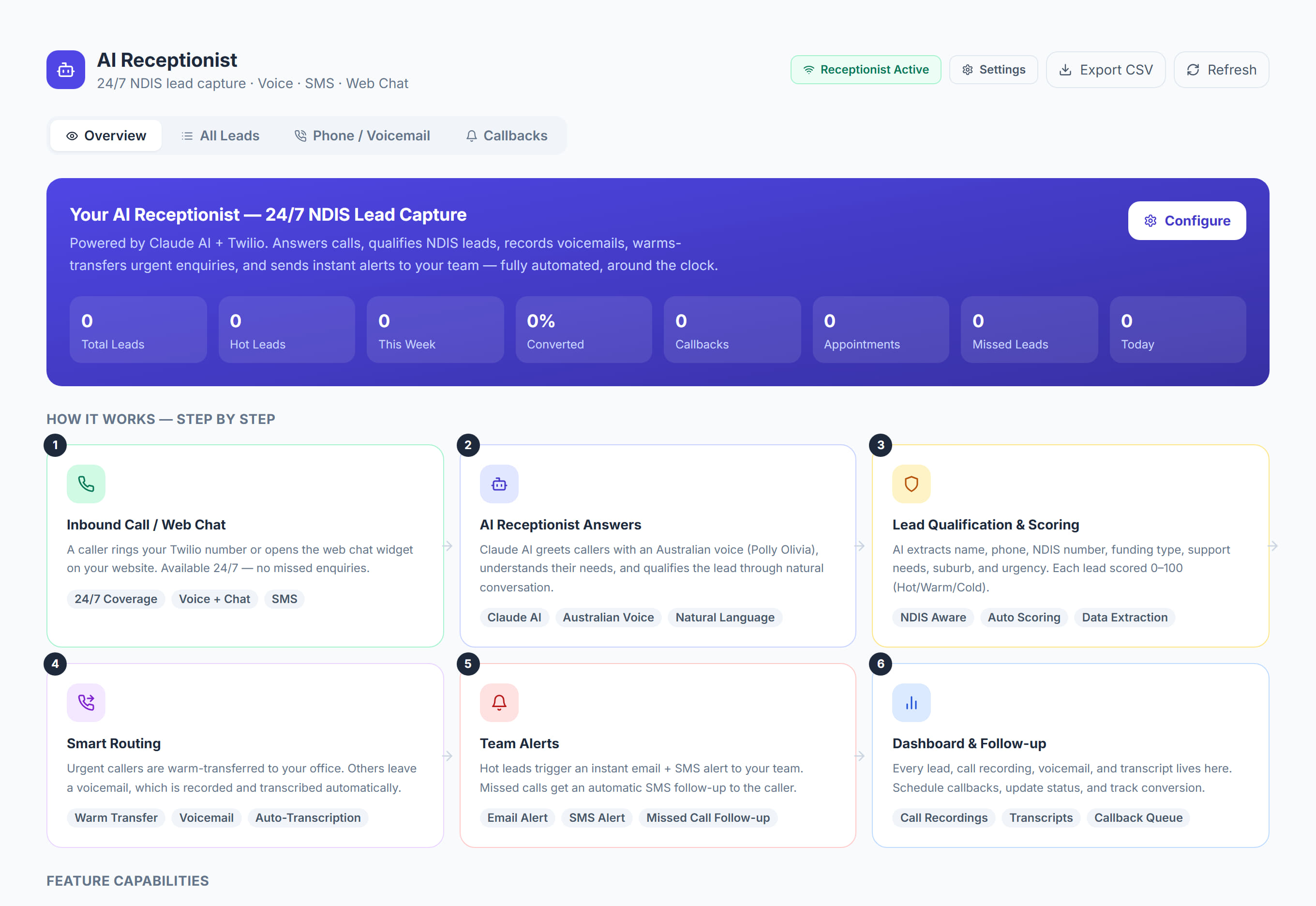
/ai-receptionist8 stepsThe inbox for every enquiry the AI receptionist captures by phone, voicemail, SMS or website chat. Intake and office staff use it to see who needs a call back, read transcripts and recordings, and track each lead through to conversion.
Step by step
- 1
Review the leads that came in on the Today tab. Needs action lists hot leads, callbacks due and missed calls, under the New today, Hot leads, Callbacks due and Missed calls tiles.
- 2
Click a lead to open it, then read the AI summary on Details, listen on Recordings, or read the whole conversation on Transcript before you follow up.
- 3
Use Call back or Email on a lead to contact them, then click Mark contacted, or Callback done once a scheduled callback has been made.
- 4
Set the lead's Status to New, Contacted, Qualified, Converted or Not suitable, add Notes, and click Save changes. Assigned to saves as soon as you change it.
- 5
Book a callback on the lead's Callback tab with a Date and Time, then click Schedule callback. The Callbacks tab lists every callback, with overdue ones flagged.
- 6
Use All leads to search by name, phone, email, suburb or NDIS number, and filter by channel, status or score, such as Hot (61+).
- 7
Act first on any lead with a Safeguarding flag or a high score. Open How the receptionist works to see the eight signals behind the 0 to 100 score.
- 8
Click Export CSV to download your leads, or Refresh to load the latest calls without leaving the page.
The screen
Did this answer your question?
If not, talk to us — we answer from Australia, in business hours.