
Communications
Chatbot
/chatbot7 stepsThe chat widget on your public website, which answers visitors' questions using your AI receptionist's knowledge and saves each enquiry as a web-chat lead. Admins switch it on and add it to the site, and office staff follow up the leads.
Step by step
- 1
Configure what it knows in Settings, AI Receptionist, under Knowledge & Training. Website chat uses the same knowledge as the phone receptionist, so you update it in one place.
- 2
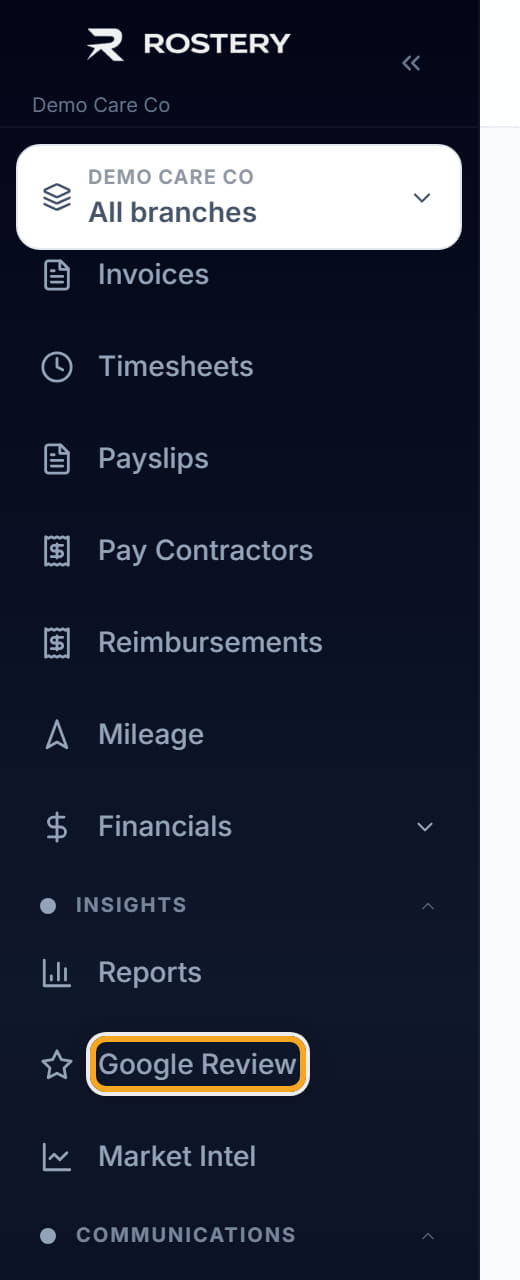
Review conversations and the leads they produced. Website chat in the sidebar opens your web-chat leads, in All leads filtered to Web chat when you also have the AI receptionist.
- 3
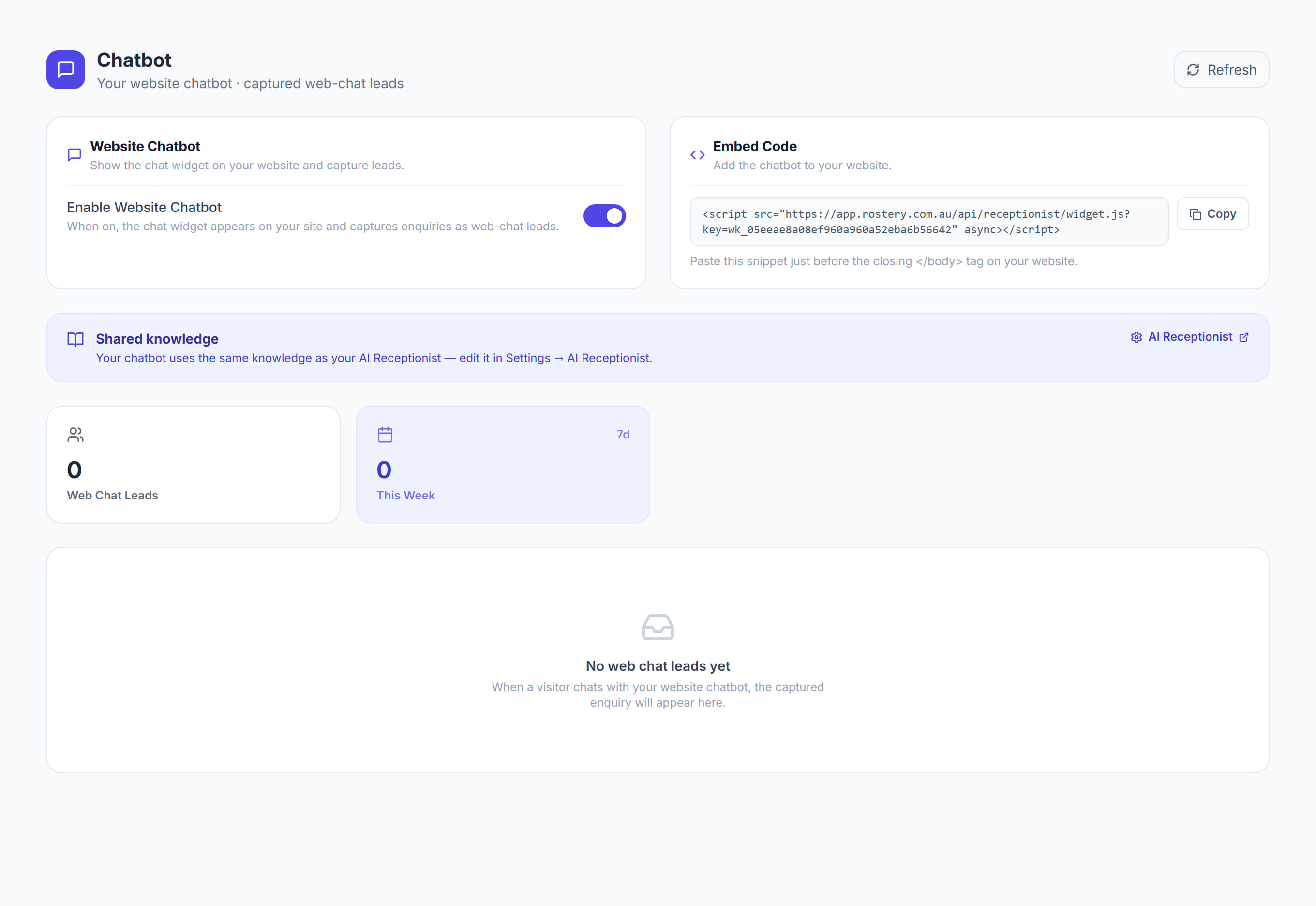
Switch on Show the chat widget on your website. It saves as soon as you switch it, and your embed code appears once it is on.
- 4
Click Copy code and paste the script just before the closing body tag on your website, or send it to whoever manages your site.
- 5
Open a web-chat lead to read the summary and Support needs on Details, and the whole conversation on Transcript.
- 6
Follow up each enquiry by phone or email. In AI Receptionist, set the lead's Status and Assigned to so the team can see who is handling it.
- 7
Switch the widget off in the same place if you need to take it down. The embed code only works while website chat is on.
The screen
Did this answer your question?
If not, talk to us — we answer from Australia, in business hours.