Rostery
HRTeams

NDIS Team Management: Staff & Clients

Group staff and participants into teams by region, house or program, and see who belongs where across the office.

  • Teams with colours
  • Staff and participants together
  • Shown on records
  • Team column on the staff list
Teams grouping staff and the participants they support

Why providers group their people

The bigger the organisation, the more it helps to know who belongs where.

Regions

Workers and participants in the north, south or a regional town.

Houses

Each SIL house, with its residents and its regular workers.

Programs

Day programs, community access or therapy supports.

New starters

Showing a new worker who they will be working with.

Finding people

Seeing quickly who is in which group.

Structure

A shared map of the organisation the whole office uses.

As a provider grows, "who works with whom" stops fitting in one person's head. Teams give it a structure: group your staff and participants by region, house, program or whatever way your organisation is arranged, and everyone in the office can see who belongs where.

How NDIS team management works in Rostery

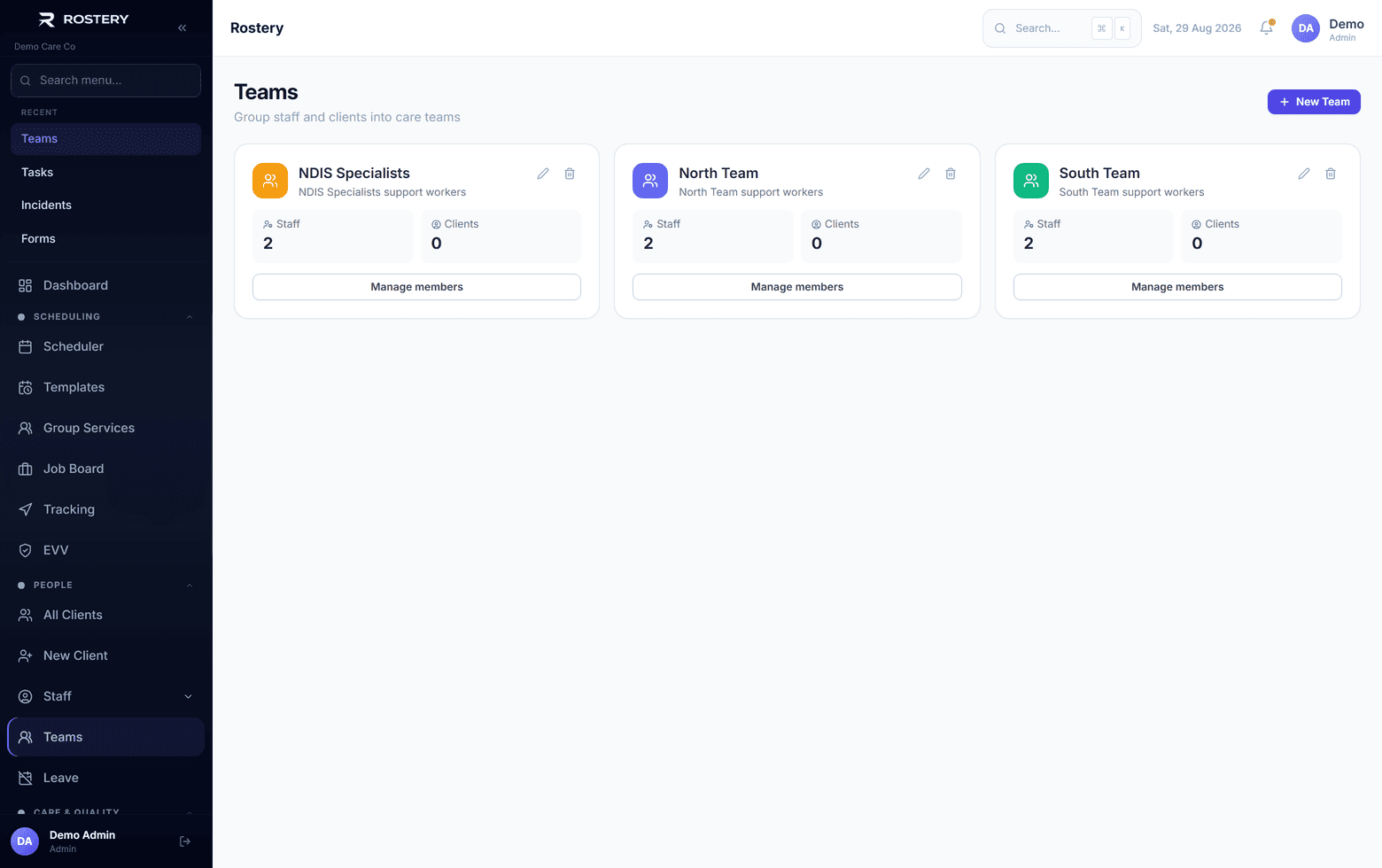
On the Teams page, create a team with a name, a description and a colour, then use Manage members to add the staff and participants who belong to it. A team can hold both, so a SIL house team can list the residents and the workers who support them. Staff can also be added to teams from their own record.

Teams then show up where people look: a Team column on the staff list, a Teams card on each staff member's and participant's record, and a Teams tab on the participant list. Administrators and office staff manage teams; only administrators can delete one.

How teams work in Rostery

1

Create a team

Give it a name, a description and a colour. Admins and office staff can create and edit teams; only admins can delete them.

2

Add staff and participants

Manage members adds the staff and participants who belong to the team. A team can hold both.

3

See teams everywhere

A Team column on the staff list, a Teams card on staff and participant records, and a Teams tab on the participant list.

4

Assign from the record

Add a worker to teams straight from their staff record.

Who uses it

Office managers

Set up the teams and keep their members current.

Coordinators

See at a glance which team a worker or participant belongs to.

Administrators

Remove teams that are no longer needed.

Teams that stay useful

  • Decide what a team means for you: region, house or program
  • Keep the number of teams small enough to remember
  • Use the colours consistently
  • Put every worker and participant in at least one team
  • Update members when people move

Set up teams in four steps

  1. 1

    Create your teams

    Open Teams and add a name, description and colour for each.

  2. 2

    Add members

    Use Manage members to add staff and participants.

  3. 3

    Check the staff list

    The Team column shows where everyone sits.

  4. 4

    Keep it current

    Update teams as people join, leave or move.

See Teams on your own data

A guided demo with your participants, staff and price book. No obligation.

Book a Demo

Teams: questions

Yes. Manage members adds both, so a house or program team can list the people supported and the workers who support them.

Ready when you are

Ready to transform your NDIS operations?

See Rostery running on your own rosters, funding and award rules — not a canned tour.

Guided walkthroughYour own dataNo obligation

No setup fees · No obligation · Australian data storage