Rostery
HRContract Generation

NDIS Staff Contracts with e-Signature

Send employment contracts from the worker's record and have them signed in the Rostery app, with the signed contract and its full history kept on file.

  • Sent from the worker's record
  • Signed in the Rostery app
  • Status at a glance
  • A full signing history
Employment contracts generated and tracked to signature

Before day one

Employers must give every new employee the Fair Work Information Statement before, or as soon as possible after, they start.

Source: Fair Work Ombudsman

Casuals too

Casual employees must also be given the Casual Employment Information Statement.

Source: Fair Work Ombudsman

What onboarding paperwork looks like without it

Most providers still send contracts the long way round. These are the jobs that eat the time.

Print, sign, scan

Contracts are printed, signed, scanned and emailed back, sometimes twice when a page goes missing.

Chasing signatures

Nobody can see at a glance who has signed and who is still waiting.

Retyped details

Names, start dates and job titles are copied into the template by hand, and mistakes slip in.

Copies everywhere

Signed contracts end up in inboxes and shared drives instead of with the worker's record.

Replaced contracts

When a contract changes there is no clear record of which version was cancelled, or why.

Requests for proof

Finding a worker's signed contract for an auditor means searching several places.

Every new support worker needs an employment contract, and every contract needs a signature you can find again later. Rostery keeps both in one place. The office sends the contract from the worker's record, the worker reads and signs it in the Rostery app, and the signed contract stays on their profile with a dated history.

How NDIS staff contracts work in Rostery

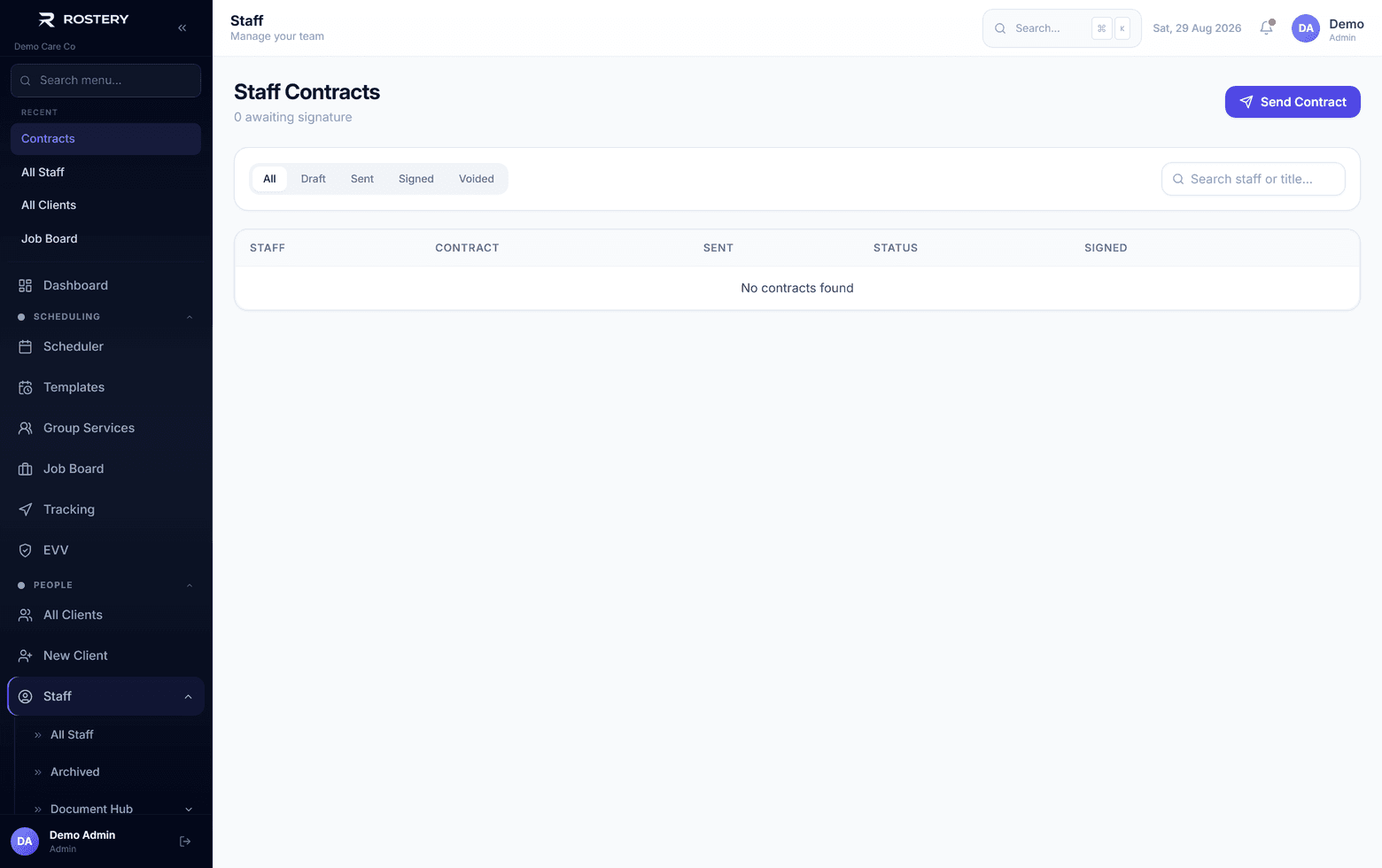
Open Staff, then Contracts, and choose Send contract. Pick the worker, start from a built-in template (Standard Employment Agreement or Confidentiality Agreement) or from a blank page, and edit the wording. Fill in merges the worker's name, your company name, their job title, employment type and start date from the records you already keep, and Rostery warns you before sending if a merge field is still empty.

The worker gets an email asking them to sign. In the Rostery app they open Profile, then My contracts, read the contract, type their full name, tick that they have read and agree to it, and sign. Rostery records when they signed and the network address the signature came from. If the worker is in the office, they can sign in person on the office computer instead.

How Rostery handles staff contracts

1

Send from the worker's record

Start from the Standard Employment Agreement, the Confidentiality Agreement or a blank page. Fill in merges name, company, job title, employment type and start date, and Rostery warns you about any field left empty.

2

Sign in the app or in person

The worker types their full name, ticks that they agree and signs in the Rostery app. In the office, Sign in person lets them sign on the office computer, with their name checked against the contract.

3

Track every contract

Each contract shows Awaiting signature, Signed or Voided. The worker's profile shows the status of their latest contract, or None sent with a shortcut to send one.

4

Keep the history

The timeline records when the contract was created and sent, who signed it, when and from what network address, and why it was voided. Resend reminder nudges a worker who hasn't signed.

Who uses it

Office and HR

Send contracts, resend reminders, void a contract with a reason, and see every worker's contract status in one list.

Support workers

Get an email, open My contracts in the Rostery app (a badge shows what is waiting) and sign on their phone.

Managers

Filter the contract list by worker and check who hasn't signed before rostering them.

What to have on file for each worker

Rostery keeps the contract and its history. The rest of this list is what a reviewer may also ask to see.

  • A signed employment contract, with the date it was signed
  • Proof the Fair Work Information Statement was given when they started
  • The Casual Employment Information Statement, for casual workers
  • A record of any contract that was replaced, and the reason
  • An NDIS Worker Screening clearance for anyone in a risk-assessed role

The rule behind it

Australian employers must give every new employee the Fair Work Information Statement before, or as soon as possible after, they start, and casual employees must also be given the Casual Employment Information Statement. The employment contract sets out the rest of the agreement, so keeping it signed and on file protects both sides.

Fair Work Information Statement (Fair Work Ombudsman)

Set up contracts in four steps

  1. 1

    Check your company details

    Your company name in Settings is what the {{company_name}} merge field uses.

  2. 2

    Review the templates

    Read the Standard Employment Agreement and Confidentiality Agreement, and adjust the wording for each contract you send.

  3. 3

    Send to a worker

    Pick the worker, press Fill in, check the text and send.

  4. 4

    Watch the status

    Resend a reminder to anyone still awaiting signature.

See Contract Generation on your own data

A guided demo with your participants, staff and price book. No obligation.

Book a Demo

Contract Generation: questions

Yes. The worker gets an email, then opens Profile, then My contracts in the Rostery app, reads the contract, types their full name, ticks that they agree and signs.

Ready when you are

Ready to transform your NDIS operations?

See Rostery running on your own rosters, funding and award rules โ€” not a canned tour.

Guided walkthroughYour own dataNo obligation

No setup fees ยท No obligation ยท Australian data storage