Rostery
OnboardingData Migration ("Smart Switch")Self-Service⭐ Core

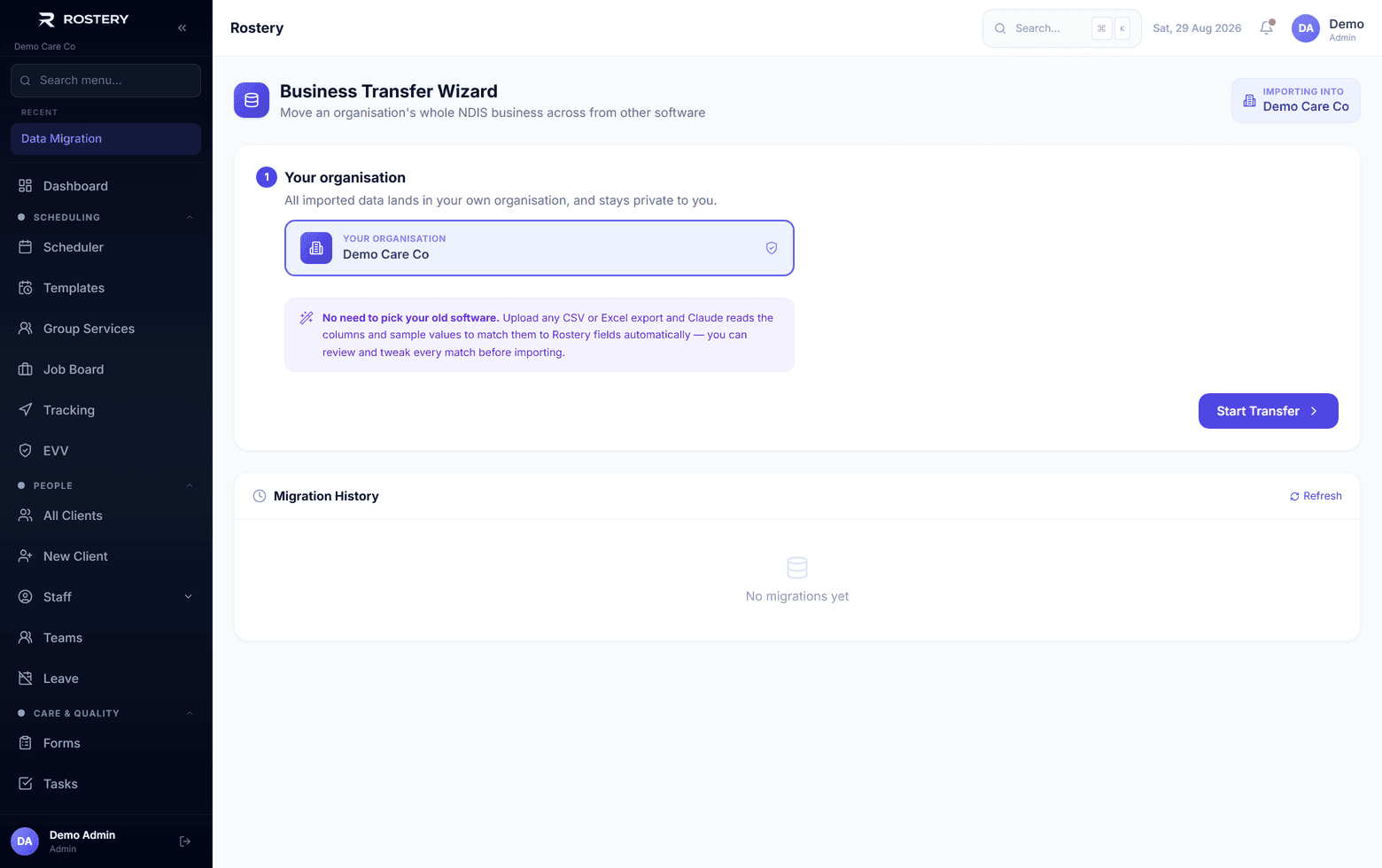
Smart Switch NDIS Data Migration

Import your participants, staff, funding, shifts and notes from CSV or Excel, with a dry run first and undo if you need it.

  • 17 kinds of record
  • Presets for common systems
  • AI column mapping
  • Dry run first
Import from your current system with column mapping and a dry run

What moving systems involves

The data is the hard part.

Participants

Every participant and their details.

Staff

Every worker, their documents and qualifications.

Funding

Plans and funding lines.

History

Shifts, notes and incidents.

Documents

Files attached to each record.

Checking

Making sure it all came across right.

Switching systems stalls on the data: years of participants, staff, funding and notes in another tool or a pile of spreadsheets. Smart Switch, Rostery's data import, brings it across in a form you can check before anything is saved.

How data migration works in Rostery

In Data import, upload a CSV or Excel file (up to 10 MB). Rostery recognises exports from common systems, including ShiftCare, AlayaCare, CareMaster, Brevity, VisualCare and SupportAbility, and maps the columns, or uses AI to map columns it doesn't recognise. Run a dry run to see what will happen, then import. Each import runs as one transaction, and you can undo a batch later.

Seventeen kinds of record can come across: participants, staff, funding, contacts, care plans, medications, shifts, progress notes, incidents, staff documents, qualifications, training, leave balances, participant documents, goals, service agreements and restrictive practices. A full-transfer workbook brings several sheets in one go, and documents come across as a ZIP with a manifest. Imported staff can be sent invitations to set their own password.

How Smart Switch handles it

1

Upload and map

CSV or Excel, recognised from common systems or mapped by AI.

2

Dry run

See what will be created before anything is saved.

3

Import safely

Each import is one transaction, and a batch can be undone.

4

Everything across

17 kinds of record, a full-transfer workbook, and documents by ZIP with a manifest.

Who uses it

Administrators

Run the import and check the results.

Office staff

Check records came across correctly.

Support workers

Get an invitation to set their password.

Before you import

  • Export everything from your old system
  • Import participants and staff before shifts and notes
  • Run a dry run for each file
  • Spot-check records after each import
  • Invite staff once their records are in

Move across in four steps

  1. 1

    Export from your old system

    As CSV or Excel.

  2. 2

    Upload and map

    Check the column mapping.

  3. 3

    Dry run, then import

    One file at a time.

  4. 4

    Check and invite

    Spot-check records and invite staff.

See Data Migration ("Smart Switch") on your own data

A guided demo with your participants, staff and price book. No obligation.

Book a Demo

Data Migration ("Smart Switch"): questions

Any system that exports CSV or Excel. Presets cover ShiftCare, AlayaCare, CareMaster, Brevity, VisualCare and SupportAbility.

Ready when you are

Ready to transform your NDIS operations?

See Rostery running on your own rosters, funding and award rules — not a canned tour.

Guided walkthroughYour own dataNo obligation

No setup fees · No obligation · Australian data storage