
Getting started
Dashboard
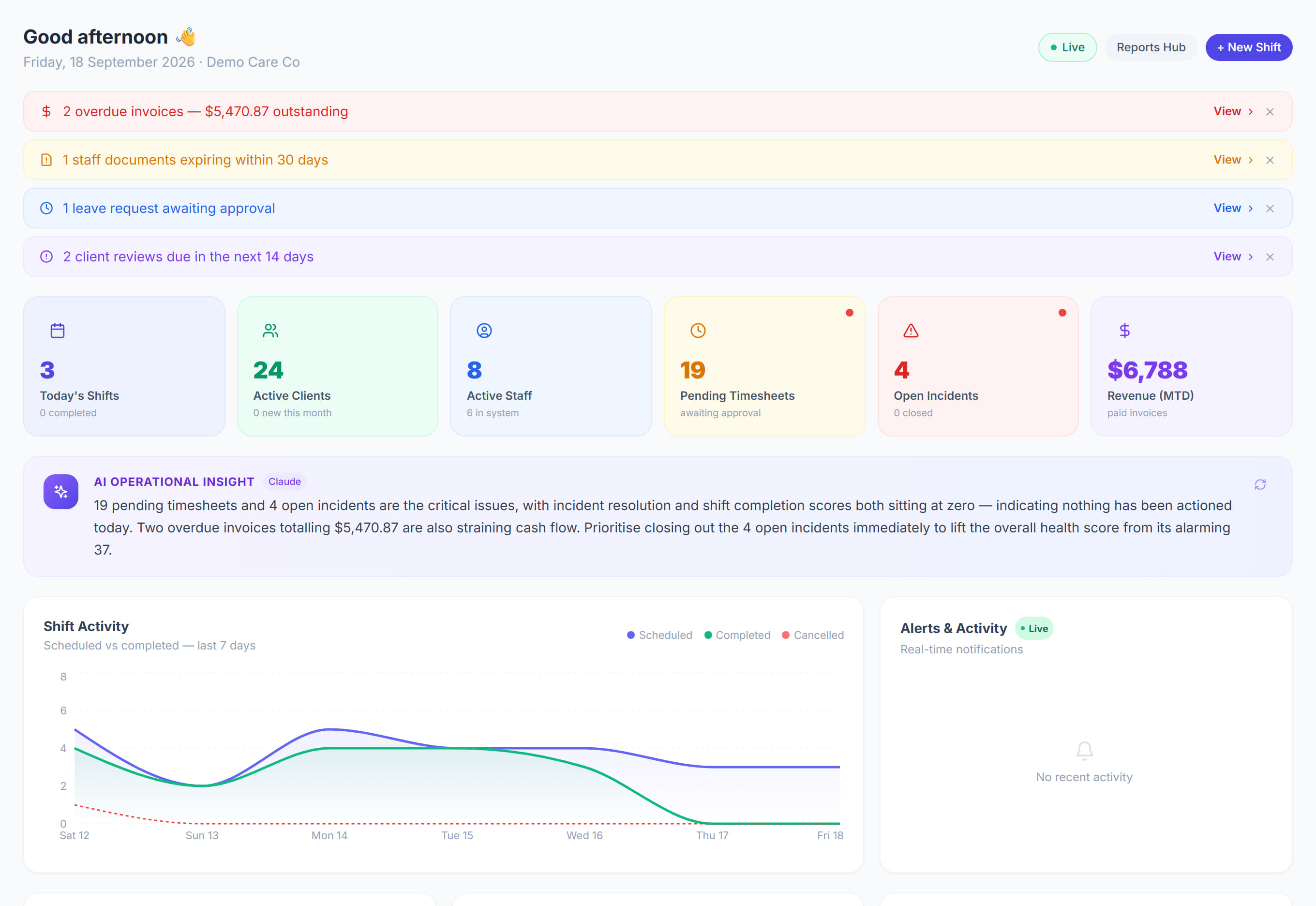
/9 stepsThe Dashboard is the first screen after you sign in. It shows today's shifts, pending timesheets, open incidents, the alerts that need action and how the organisation is tracking. Coordinators and managers use it each morning to decide what to deal with first.
Step by step
- 1
Read the alerts at the top, such as overdue invoices, staff documents expiring within 30 days, leave awaiting approval and client reviews due. Select View to open the list behind one.
- 2
Check Clock-in and clock-out alerts. Not clocked out lists workers whose shift has ended with no clock-out, and Missed clock-in lists shifts that started with no clock-in.
- 3
Read the tiles: Today's Shifts, Active Clients, Active Staff, Pending Timesheets, Open Incidents and Revenue (MTD). Select a tile to open the screen behind the number.
- 4
Read the AI Operational Insight for a short summary of the day's figures, and select the refresh icon beside it to ask for a new one.
- 5
Check Shift Activity for scheduled, completed and cancelled shifts over the last 7 days, and the Today's Shifts panel for how many are booked, vacant or cancelled.
- 6
Review Overall Health & Compliance. Each panel, such as Shift Notes or Incidents, shows a percentage and opens the screen where you fix what is missing.
- 7
Check the Financial Summary for month-to-date revenue, gross profit, staff cost and superannuation. If shifts are missing rates, select Fix now so revenue is not understated.
- 8
Select Run AI Analysis in the AI Intelligence Center to check staff burnout risk, funds more than 80% used and early signs of client deterioration.
- 9
Use Search menu at the top of the sidebar to find any screen by name, then press its star to pin it. Pinned screens stay at the top of the sidebar.
The screen
Did this answer your question?
If not, talk to us — we answer from Australia, in business hours.