Rostery
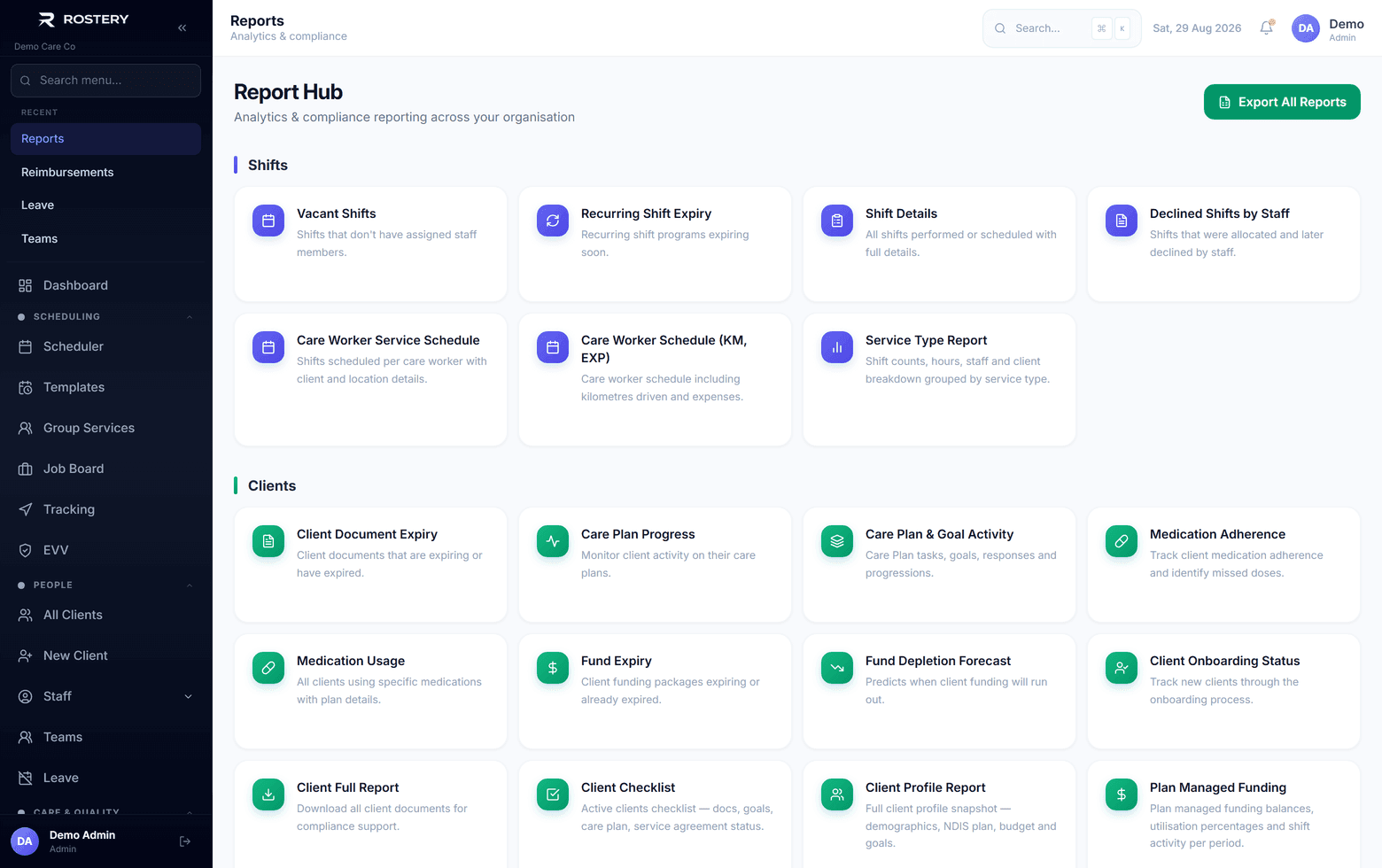
Reports49 Ready-Made Reports

NDIS Reports: 49 Ready-Made Reports

49 ready-made reports across shifts, participants, staff and finance, with branded Excel and PDF exports.

  • 49 ready-made reports
  • Branded exports
  • Everything in one workbook
  • Filters on every report
The report library — over fifty reports, scoped to your organisation

The questions a provider answers every month

Each one used to mean an export and an evening in a spreadsheet.

Unfilled shifts

Which shifts are still vacant, and for whom.

Funding left

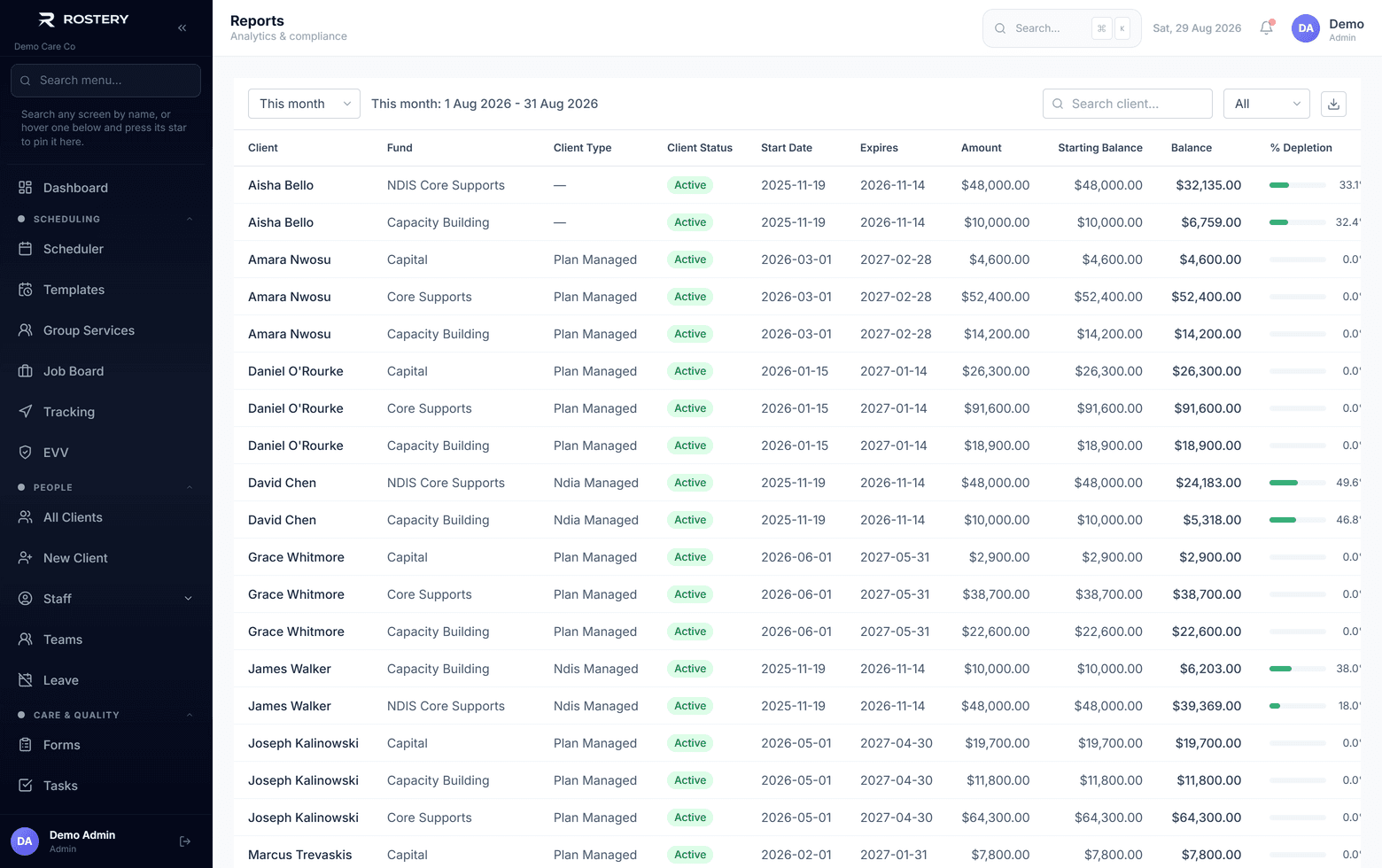
How much each participant has left and when it will run out.

Expiring documents

Whose checks and certificates are about to lapse.

Delivered against invoiced

Whether everything delivered has been billed.

Staff hours

Who worked what, and how it compares.

Board and audit packs

A clean set of figures for the people who ask.

Every month brings the same questions: which shifts went unfilled, how much funding is left, whose documents are about to expire, what was delivered and what was invoiced. Rostery's Report Hub answers them from the data you already keep, without building a spreadsheet first.

How NDIS reports work in Rostery

The Report Hub holds 49 ready-made reports across shifts, participants, staff and finance, from vacant shifts and fund balances to staff document expiry, delivered versus invoiced and the funding depletion forecast. Pick a report, set the filters, and read it on screen as a table or chart.

Most reports export as Excel and PDF with your logo, colour, name, ABN and contact details on the letterhead, as well as CSV; the rest export as CSV or print. Export All Reports builds one branded Excel workbook with a sheet for each report. On the Growth plan and above, AI Summary gives a two or three sentence summary of what a report shows.
How the Report Hub handles it

1

49 ready-made reports

Shifts, participants, staff and finance in one hub, each with filters, and a table or chart on screen.

2

Branded exports

Most reports export to Excel and PDF with your logo, brand colour, name, ABN and contact details, plus CSV. A few export as CSV or print.

3

Export everything at once

Export All Reports builds one branded Excel workbook with a sheet for each report.

4

AI Summary

On the Growth plan and above, a two or three sentence summary of what the report on screen shows.

See 49 Ready-Made Reports in action

Fund balances across participants, with depletion visible
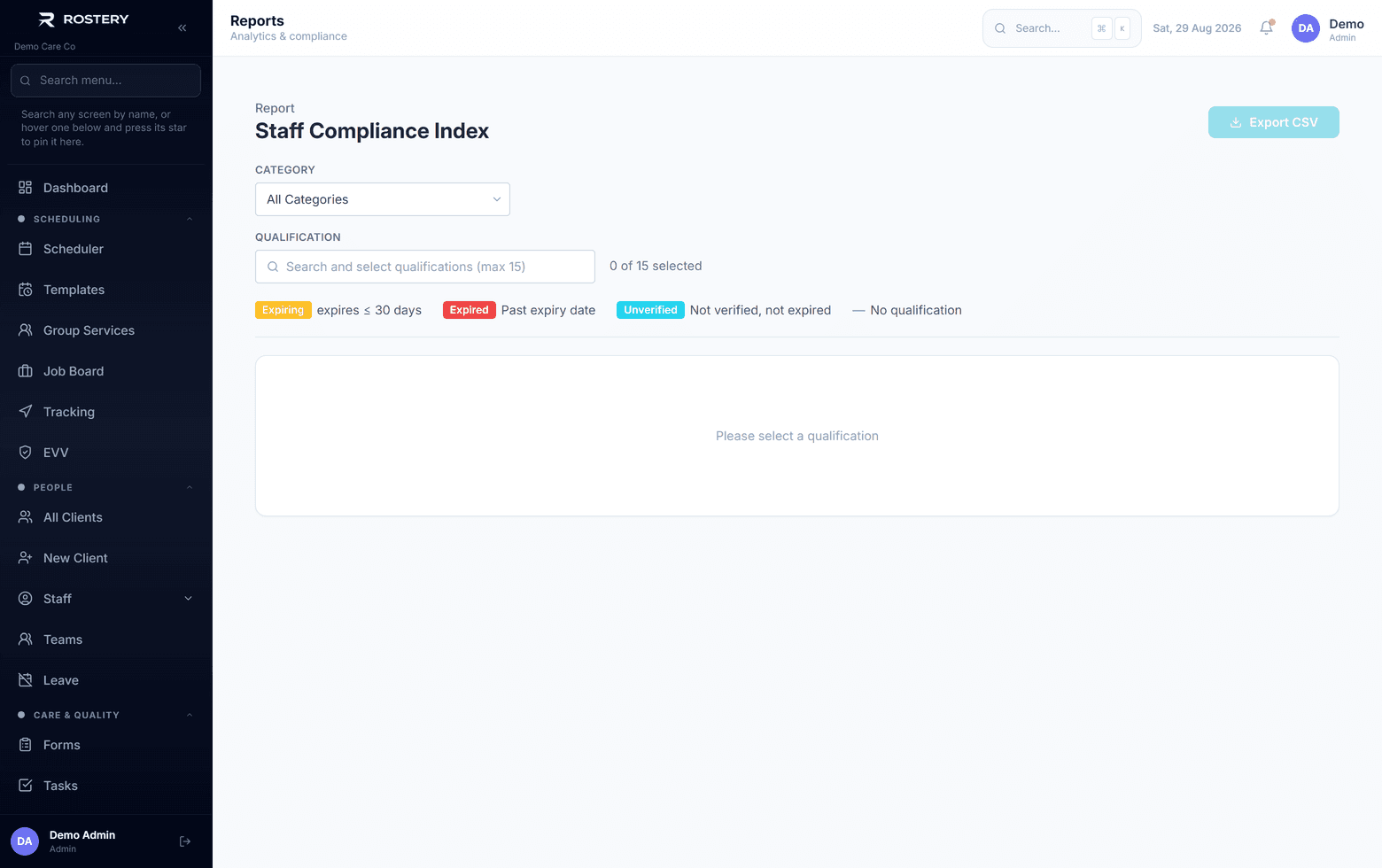
Worker compliance in one view

Who uses it

Managers and owners

Vacant shifts, staff hours and the monthly picture.

Finance

Billing, fund balances, depletion forecasts and delivered against invoiced.

Compliance

Staff and participant document expiry, ready for an audit.

A monthly reporting routine

  • Vacant shifts for the month ahead
  • Fund balances and the depletion forecast
  • Staff document expiry for the next 30 days
  • Delivered against invoiced, before month end
  • Export All Reports for your records

Run your first report in four steps

  1. 1

    Open the Report Hub

    Reports, from the menu.

  2. 2

    Pick a report

    Choose from shifts, participants, staff or finance.

  3. 3

    Set the filters

    Dates, staff, participants and the rest.

  4. 4

    Export

    Excel, PDF or CSV, ready to share.

See 49 Ready-Made Reports on your own data

A guided demo with your participants, staff and price book. No obligation.

Book a Demo

49 Ready-Made Reports: questions

49 ready-made reports across shifts, participants, staff and finance.

Ready when you are

Ready to transform your NDIS operations?

See Rostery running on your own rosters, funding and award rules — not a canned tour.

Guided walkthroughYour own dataNo obligation

No setup fees · No obligation · Australian data storage