Rostery
EnterpriseBranches & Multi-Site

Multi-Site NDIS Software with Branch Controls

Run several offices or regions in one organisation, give each person access to the branches they work in, and keep your data walled off from every other provider.

  • Branches with their own details
  • A branch switcher
  • Per-person access
  • Isolated organisation data
Organisation settings, scoped to your organisation alone

APP 11

Organisations must take reasonable steps to protect personal information from misuse, interference, loss and unauthorised access.

Source: OAIC

Serious harm

If the Privacy Act covers your organisation, you must notify affected people and the OAIC when a data breach is likely to result in serious harm.

Source: OAIC

What changes when you run more than one site

A second office brings questions the first one never had to answer.

Separate rosters

Each site builds its own roster from its own staff and participants.

Local managers

Each branch has someone responsible for it.

Restricted access

A coordinator in one region shouldn't browse another region's participants.

One brand

Every report and export should still look like one organisation.

Growth

Opening the next site shouldn't mean a new system.

Privacy

Participant data has to stay inside your organisation.

As a provider grows, it opens new offices, regions or service lines, and the people in each one need to see their own participants, staff and shifts without wading through everyone else's. Rostery handles that with branches inside one organisation, and keeps every organisation's data separate from every other one at the database level.

How multi-site works in Rostery

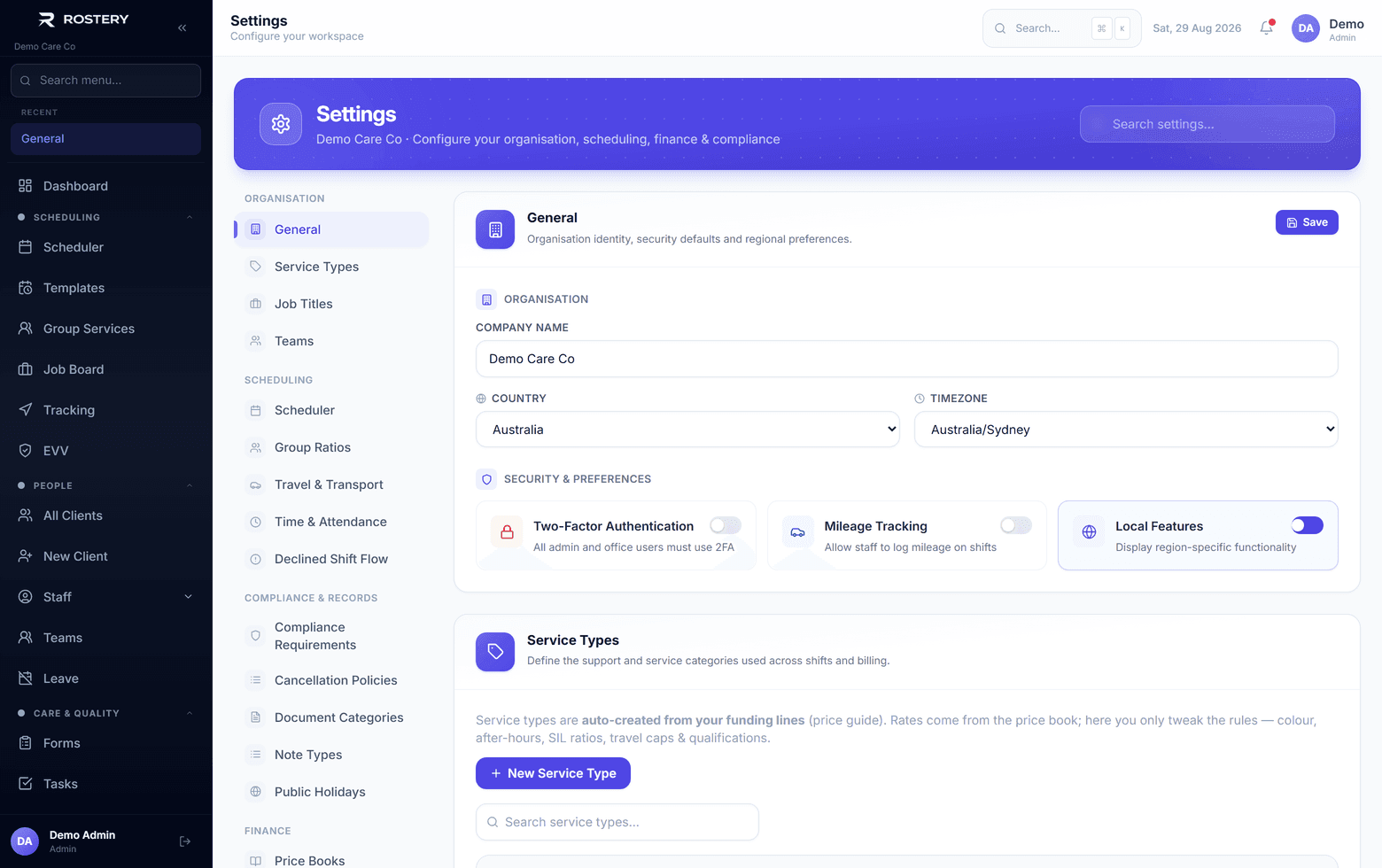
An administrator adds each branch in Settings with its name, code, address, phone, email, manager and time zone. Participants, staff and shifts belong to a branch, and the branch switcher narrows the participant list, staff list and roster to the branch you pick.

You decide who sees what. Give a coordinator access to one or two branches and those are the only ones they can switch to. Leave someone unrestricted and they see every branch, and the account owner always sees everything. Your logo, colour, ABN and NDIS registration number are set once for the organisation and appear on its reports and exports.

How Rostery handles multiple sites

1

Branches with their own details

Add each branch with a name, code, address, phone, email, manager and time zone. Participants, staff and shifts are each assigned to a branch.

2

A branch switcher

Pick a branch and the participant list, staff list and roster narrow to it. Rostery checks on the server that the branch belongs to your organisation and that you may use it.

3

Per-person branch access

Restrict each person to the branches they work in. Someone with no restriction sees every branch, the account owner always does, and you can't remove a person's only branch by mistake.

4

Organisations kept apart

Every table that holds organisation data has row-level security in the database, so each request can only reach its own organisation's rows. If that context is missing, the request gets nothing.

Who uses it

Owners and head office

See every branch, set branding once for the organisation and control who can see what.

Branch managers

Work in their own branch's participants, staff and roster.

Coordinators

Switch between the branches they cover, and only those.

Before you open your second site in Rostery

  • Decide how you'll split branches: by office, region or service line
  • Assign participants, staff and shifts to the right branch
  • Restrict access for people who only work at one site
  • Check your plan's branch limit and add branches if you need them
  • Name a manager for each branch

The rule behind it

Under Australian Privacy Principle 11, organisations covered by the Privacy Act must take reasonable steps to protect personal information from misuse, interference, loss and unauthorised access. Giving each person access only to the branches they work in, and keeping each organisation's data in its own walled-off space, are both reasonable steps.

APP 11: security of personal information (OAIC)

Set up branches in four steps

  1. 1

    Add your branches

    In Settings, add each branch with its details and manager.

  2. 2

    Assign people and shifts

    Put participants, staff and shifts in the right branch.

  3. 3

    Set branch access

    Restrict coordinators to the branches they work in.

  4. 4

    Use the switcher

    Pick a branch to narrow participants, staff and the roster.

See Branches & Multi-Site on your own data

A guided demo with your participants, staff and price book. No obligation.

Book a Demo

Branches & Multi-Site: questions

Starter includes 1 branch, Growth 3, Scale 10 and Enterprise unlimited. Extra branches can be added for $49 a month each.

Ready when you are

Ready to transform your NDIS operations?

See Rostery running on your own rosters, funding and award rules โ€” not a canned tour.

Guided walkthroughYour own dataNo obligation

No setup fees ยท No obligation ยท Australian data storage